 and add the question– fill in
document information, add file(s).
and add the question– fill in
document information, add file(s). To submit the question in the system:
1. In the section
„Documents”, in the block „Pretenders’ questions” click the icon
and add the question– fill in
document information, add file(s).
2. Save the question as draft (the status of the question is ‘Project’) or submit the question signing it with a system signature (the status of the question is ‘Registered’).
3. System calculates the response term and represents it in the field Response term (not intended for Publications in EPS).
4. When the answer is received in the system, the information in the column Processing status is represented. PC response is available in the block “Commission’s answers and clarifications”.
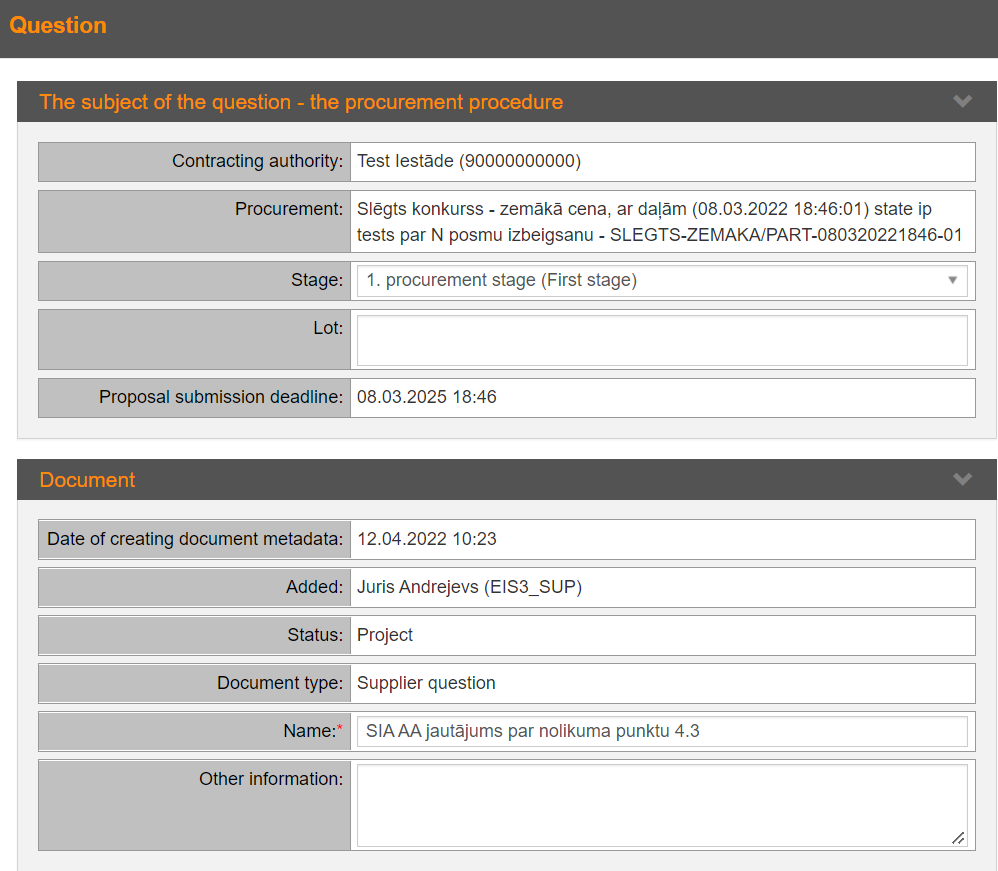
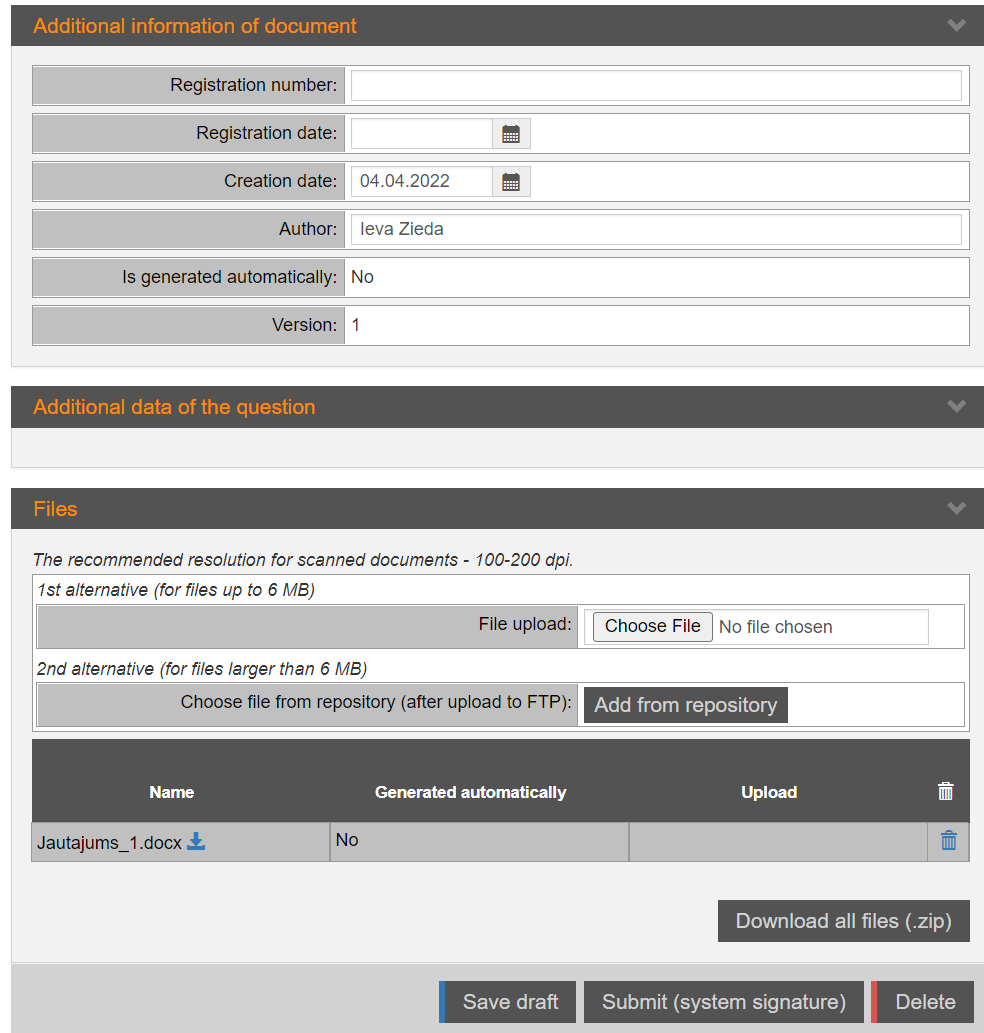
Picture 211. Pretender’s question
|
Interface element |
Description |
|
The subject of the question - procurement procedure |
Information about procurement, Contracting authority and submission deadline. Information about procurement stage and lot – in a case procurement isn’t Publication in EPS. |
|
Document |
Information on pretender’s question. |
|
Additional information of document |
Registration date and time of the document, author of the document, etc. |
|
Additional data of the question |
Question submission date and system-calculated deadline for providing an answer (if the question has not been submitted for procurement – publication in EPS). |
|
Files |
Add the question file. |
|
Save draft |
Click to save draft of the document. |
|
Submit (E-signature) |
By clicking the question is submitted. |
|
Send to e-address |
Click to send document to e-address (see 2.4.2 Send document to e-address). |