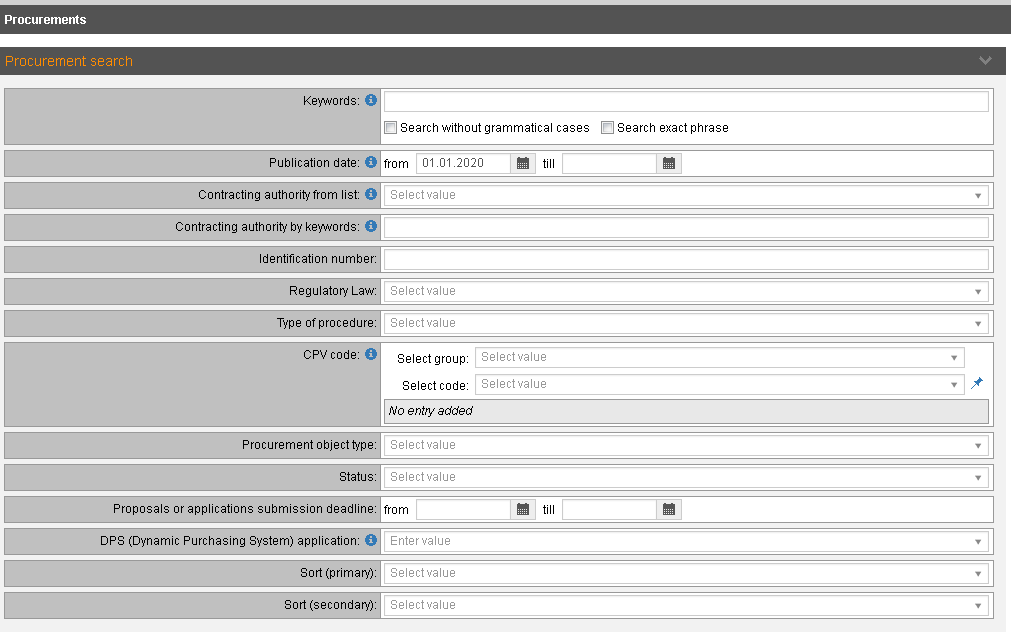
To select procurements using advanced search criteria click to the link Advanced search in the section “e-tenders – Procurements”:
Picture 166 Procurements advanced search
|
Interface element |
Description |
|
Search criteria |
Search criteria for procurement advanced search. |
|
Keywords |
Enter the text – one or more words – to find procurements where title, identification number or Contracting authority contains entered text (at least one of words entered in any grammatical case). Additional options are: − Search without grammatical cases – to search for words in exactly the same grammatical case as entered in the field Keywords. − Search exact phrase – to search procurements where title, identification number or Contracting authority are exactly the same as the phrase entered, taking into account also the use of uppercase and lowercase letters. |
|
Contracting authority |
When selecting procurements by Contracting authority, it can be selected from the list in the field Contracting authority from the list or entering the text in the field Contracting authority by keywords – in that case procurements where Contracting authority name contains all entered words will be selected. |
|
Status |
When searching by the status procurements in following statuses will be selected: − Announced – procurements in the status ‘Announced’ will be selected. − Bids opened – procurements in the status ‘Bids opened’, ‘Awarded’ or ‘Contract signing’ will be selected. − Contracted – procurements in the status ‘Contracted’ or ‘Closed will be selected. − Closed/ Terminated – procurements in the status ‘Closed/ Terminated’ will be selected. |
|
Hyperlink to selected contracting authority's all procurements in buyer profile |
Click the hyperlink to open list of the all procurements of the selected Contracting authority. Click the icon |
|
DPS (Dynamic Purchasing System) application |
Use to select only DPS procurements. |
|
Sorting of results |
To define sequence of procurements in the list, specify sorting order in the fields Sort (primary) and Sort (secondary). By default procurements are sorted descending by announcement date, e.g., the newest at the top of the list. |
|
Clear |
Click to clear all entered search criteria. |
 to copy the link all procurements
of the selected Contracting authority. The link can be pasted in any web
site to ensure direct access to organization’s procurements.
to copy the link all procurements
of the selected Contracting authority. The link can be pasted in any web
site to ensure direct access to organization’s procurements.