If it is necessary to browse the repository of files or upload large files, you can use an FTP client software or browse the file repository in your Fire Fox browser.
FTP server repository is used for:
− Files generated by the system are stored on FTP server.
− If it is necessary to upload large files (from 5 MB, however, this limit can be changed in the system configuration), the files should be saved in the repository using FTP protocol, and later in the corresponding system form the file should be attached from repository.
The conditions for the access to FTP server and for the file browsing from the procurement form:
− There are hyperlinks in the procurement basic data form (see 3.4 procurement data) to open the procurement’s public files folder and the proposal files folder on the FTP server.
− To browse and download these files you can by using Firefox (does not require a dedicated FTP client application).
− Firefox FireFTP plug-in (https://addons.mozilla.org/en-US/firefox/addon/fireftp/) has to be installed to the user’s workstation.
Note! This functionality is available in web browser FireFox.
The conditions for access the FTP server and file upload:
To upload files, one of the FTP client applications must be installed on user workstation, for example freeware WinSCP (https://winscp.net/eng/index.php). Instructions for creating an FTP connection and a large files upload is given in the instruction “Instruction on how to add large files to the system” created by SRDA.
Note! In the case of problems with connection to the FTP server, contact SRDA.
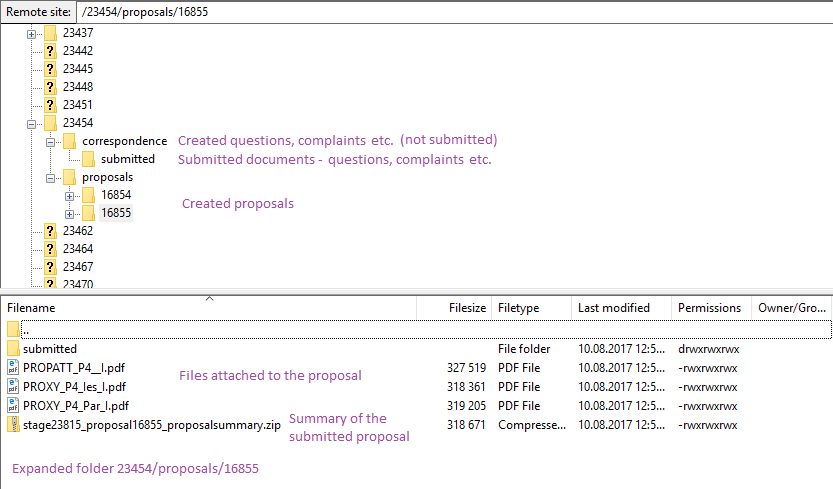
Folder structure on the FTP server (see picture below):
− _upload folder – users may upload necessary files. The folder is available to all organization users by using the FTP client. In some document forms in the system when selecting ‘Add file from the repository’ this folder opens by default, for example, when attaching the file to the proposal.
− Procurement_ID folder – the folder is created when users of the organization create the proposal or question. The corresponding subfolders Correspondence and Proposal are created as well. Different proposal documents, for example, final proposal (generated .zip) and other documents are stored in the folders. This folder available for pretender’s users using the FTP client. Files are only available for download, you cannot edit, delete, or upload them. You can open this folder directly by clicking on the hyperlink at the field Proposal data in EPS FTP server in the procurement basic data form.
− Procurement_Upload folder – users can upload large files related to the procurement. The folder is available only to procurement commission by using the FTP client. In most document forms in the system when selecting ‘Add file from the repository’ this folder opens by default. For example, when attaching the file to the procurement requirements document.
− Procurements /<Procurement_ID> folder – several public procurement documents, such as system generated requirement documents (.pdf files for each procurement lot). The folder is available both to procurement commission and pretenders by using the FTP client. . Files are only available for download, you cannot edit, delete, or upload them. You can open this folder directly by clicking on the hyperlink at the field Procurement public data in EPS FTP server in the procurement basic data form.
Picture 201. Folders structure on the FTP server