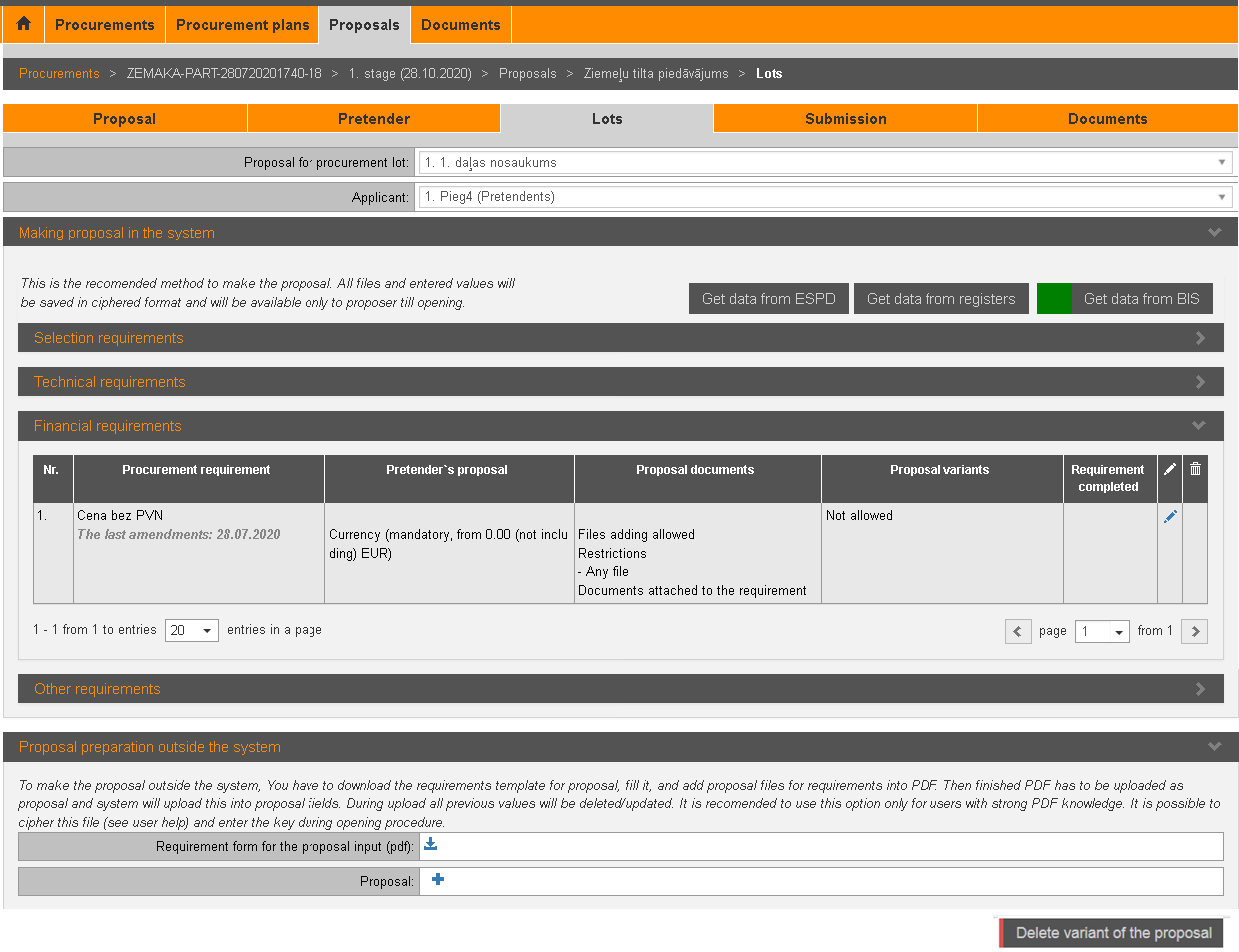
Proposal for each lot prepare in the section „Lots”.
You can prepare and submit the proposal in several ways:
− Enter your proposal to each requirement in the system. This is the recommended method to make the proposal. All files and entered values will be saved in ciphered format and will be available only to proposer till opening.
− Download the requirement form in .pdf, fill in it and attach to proposal – system automatically fills in the requirement form in a system with correctly entered data in .pdf file.
− Download the requirement form in .pdf, fill in it, cipher file and attach it to the proposal by indicating that file is encrypted. In this case, the pretender decrypts its proposal during the proposals opening meeting. It should be noted that the system will not provide validation and verification of the file format and against malicious software and automatic metadata accession. When submitting encrypted proposal you will have to enter the encryption key at specified time (defined in configuration) after the opening of tenders, otherwise the proposal will not be taken into consideration. In a case of malicious software or an unsuccessful decryption, proposal will not be taken into consideration. All unencrypted values entered in the proposal form during decryption will be deleted.
− For procurements that are subject to ESPD selection requirements, the selection requirements can be entered into the system, retrieved from another proposal or an appropriate .xml file (see 15.7.4 ESPD Selection requirement input). This applies also if the proposal is about to be encrypted.
Picture 188. Proposal for the lot
|
Interface element |
Description |
|
Proposal for procurement lot |
Select the lot, for which you enter the proposal. If there are proposal variants intended, you can add variant by clicking the button Add variant. |
|
Applicant |
For ESPD procurements proposal developers, submitters or members of a group of persons may choose one or all of the tenderers to view, delete (also information entered by other applicants) or enter the Selection requirement information (only for users organization). |
|
Selection requirements, Technical requirements and other sections of the proposal
|
Open each requirement for editing and enter your
proposal. To mark proposal for requirement as completed, click the icon
To delete proposal for requirement, click the icon
|
|
Proposal preparation outside the system |
If proposal is prepared outside the system, download the requirement form, prepare proposal and upload it (see description 15.7.2 Prepare proposal outside the system). |
|
Delete variant of the proposal |
Click to delete variant of the proposal. |
|
Get data from ESPD |
Click to fill-in ESPD Selection requirements from other proposals in the system or upload a prepared .xml file (see 15.8.2 Get data from ESPD). |
|
Get data from registers |
Click to get pretender’s data for ESPD Selection requirements from public registers (see 15.8.3 Get data from registers). |
|
Get data from BIS |
Click to get data from BIS (see 15.8.6 Get data from BIS). When the data has been read, the button is displayed with a green indicator. |
 .
. .
.