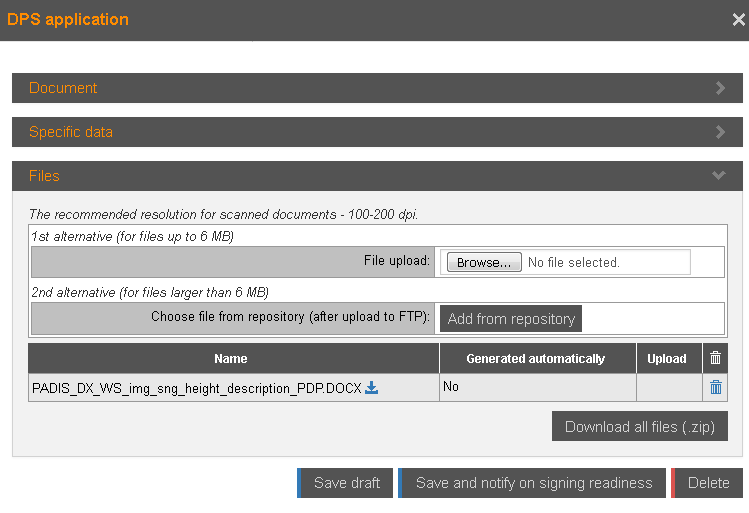
To create and submit DPS application:
1. When the DPS procurement is in the status of ‘Established DPS, in the procurement’s proposals list (see 14.5 Procurement’s proposals list) click the button Create DPS application.
2. Select procurement lots (see 15.4 Start the preparation of the proposal) and save application.
3. Indicate the responsible person and the pretender’s information, subcontractors etc. (see 15.6 Pretender’s data). When saving proposal, the document – DSP application – is created. It is available in the “Documents – DPS Applications” section (see 18.8 DPS applications). You can also open the document by clicking the hyperlink View DPS application document in the field DPS document (see 15.6 Pretender’s data).
4. Attach proposal files to the document.
5. Click Save and Submit in the document form to Submit DPS application.
6. If the applicant does not have the right to sign the proposal the Save and notify on signing readiness button is available. When press the button system sends a notification to the proposal signatories that the DIS application is ready to sign.
Picture 268. DIS application
When the procurement commission completes the evaluation, the responsible person indicated in the DPS application receives a notification.
The results of the evaluation are available in the “Documents — DPS applications evaluation results” section (see 18.9 DPS applications evaluation results).