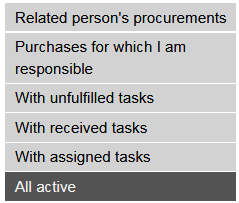
All pretender’s proposals created in the system are available in the section „Proposals”. Proposals can be selected:
− Select proposals using the selection block on the left side of the screen:
Note! When selecting Related person’s procurements, proposals where the user organization is a subcontractor, a member of an association of persons or a general partnership or the Person on whose capabilities the pretender relies are available.
Picture 170. Proposals selection block
− Select proposals using advanced search.
Note! Advanced search isn’t available when related persons’ procurements are selected.
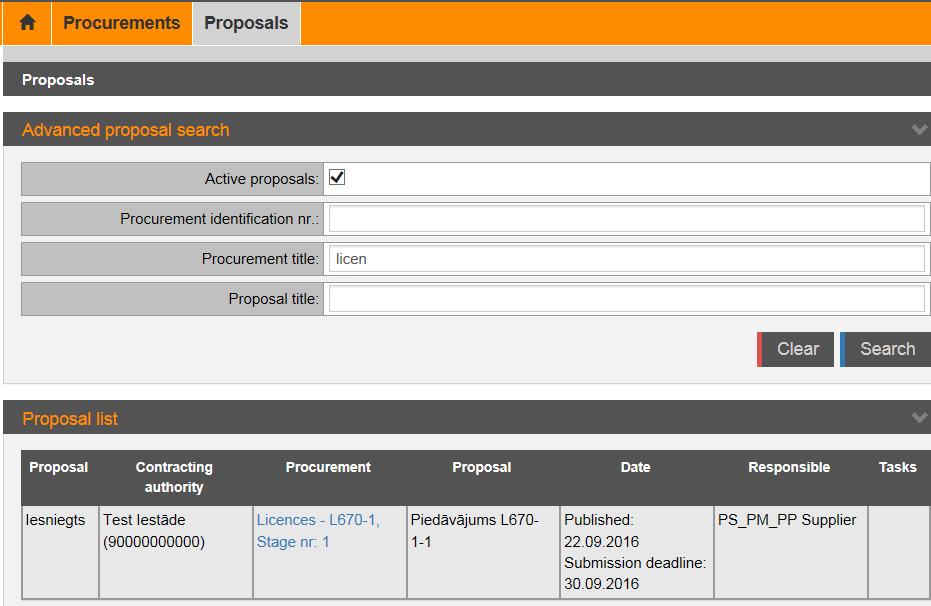
Picture 171. List of proposals
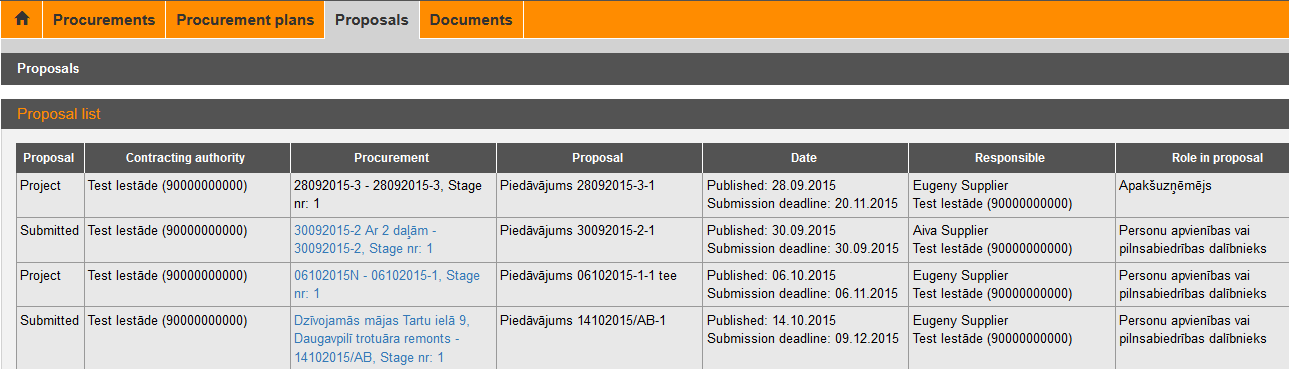
Picture 172. Related person’s procurements
Note! If the role of the user organization in the procurement is ‘Subcontractor’, then the user does not have access to the procurement for which the ESPD exclusion and selection conditions do not apply, i.e. the procurement title is displayed as text.
Proposals of one procurement may be found also in sections „Procurements – Proposals”.
Following information is maintained about proposal:
− „Proposal” – procurement summary and all pretender’s proposals, operation to create new proposal (see 15.5 Summary data of the proposal).
− „Pretender” – information about pretender, subcontractors, persons in charge (see 15.6 Pretender’s data).
− „Lots” – pretender’s proposal for each lot (see 15.7 Pretender’s proposal for lot).
− “Submission” - information about proposal submission, operations to sign and submit the proposal (see 15.15 Submit proposal).
− „Documents” – procurement’s documents, questions, answers and other documents related to procurement (see 18 Documents – for pretender).
− „Auction” – the section is available if there is auction intended for procurement (see 17 Procurement auctions – for pretender).
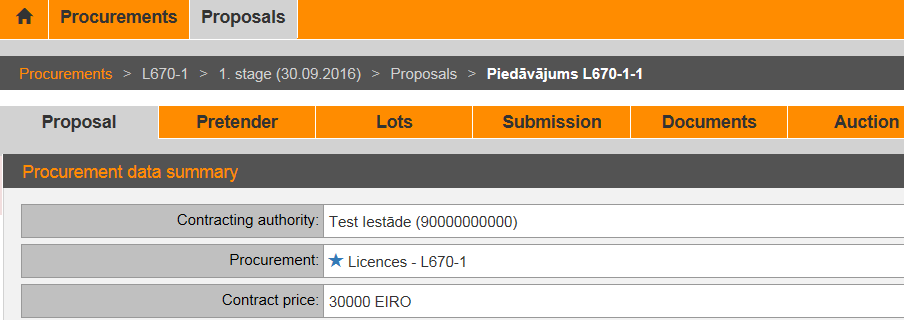
Picture 173. Proposal’s information